> For the complete documentation index, see [llms.txt](https://ooju.gitbook.io/defi/llms.txt). Markdown versions of documentation pages are available by appending `.md` to page URLs; this page is available as [Markdown](https://ooju.gitbook.io/defi/defi-type/oojus.md).

# OOJUS

#### **Step 1: Connect Your Wallet**

Open the ICO page and click on the button to change the status from **"OFF"** to **"ON"** to begin.

<div align="left"><figure><img src="https://1601025725-files.gitbook.io/~/files/v0/b/gitbook-x-prod.appspot.com/o/spaces%2FpmTmyDG5fXgRWTNXspUU%2Fuploads%2Fvz6HMksPvBByqUqI8EOn%2Fimage.png?alt=media&amp;token=0c0e7749-ca1c-496e-be29-59d0d5575cf0" alt="" width="319"><figcaption></figcaption></figure></div>

***

#### **Step 2: Choose MetaMask Account**

1. A pop-up will appear. If you want to change the MetaMask Account you connect with you can click on "Edit Accounts" and Select Which MetaMask account you want to connect with.&#x20;
2. Ensure you're on the **Binance Smart Chain (BSC)** network.

<div align="left"><figure><img src="https://1601025725-files.gitbook.io/~/files/v0/b/gitbook-x-prod.appspot.com/o/spaces%2FpmTmyDG5fXgRWTNXspUU%2Fuploads%2FvGUjhaNVVnfS8uHOHIs2%2Fimage.png?alt=media&amp;token=dd5e618e-0234-4c04-9bfa-633ab9fa22dd" alt="" width="318"><figcaption></figcaption></figure></div>

***

#### **Step 3: Wallet Connected**

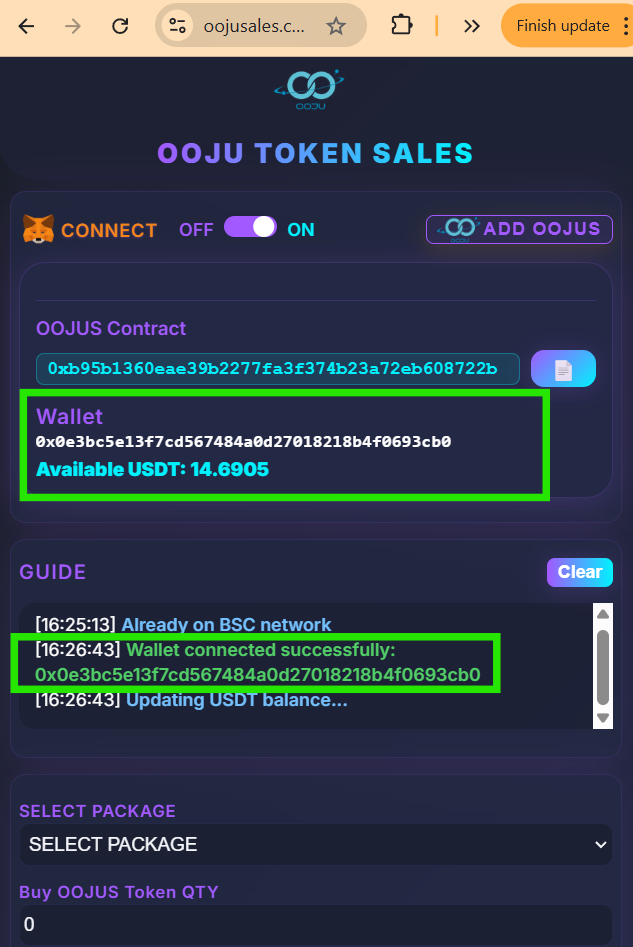
After connecting, your wallet address and USDT balance will appear. You can also see from the "Guide" Menu whether your wallet has connected successfully. In the Guide page you can also see all steps related to the ICO from connecting your wallet to purchasing OOJU.&#x20;

<div align="left"><figure><img src="https://1601025725-files.gitbook.io/~/files/v0/b/gitbook-x-prod.appspot.com/o/spaces%2FpmTmyDG5fXgRWTNXspUU%2Fuploads%2FKuISx8CbiPb9OIRb5peK%2Fimage.png?alt=media&amp;token=8b3fc94b-d3dd-4edd-bbb7-e97d655dac20" alt="" width="317"><figcaption></figcaption></figure></div>

***

#### **Step 4: Add OOJU Token to MetaMask**

There are two ways to add OOJU Tokens to your MetaMask. Method 1 is by clicking on "Add OOJU" Method 2 is by manually importing the token to your MetaMask Wallet.

***

{% tabs %}
{% tab title="Automatic Token Add (Method 1)" %}

#### **Step 1: Click on "Add OOJU"**

<div align="left"><figure><img src="https://1601025725-files.gitbook.io/~/files/v0/b/gitbook-x-prod.appspot.com/o/spaces%2FpmTmyDG5fXgRWTNXspUU%2Fuploads%2F5i560Ahin1kAmhGQROqy%2Fimage.png?alt=media&amp;token=031fd9d0-79c4-4078-b809-9d5d8b8baf03" alt="" width="314"><figcaption></figcaption></figure></div>

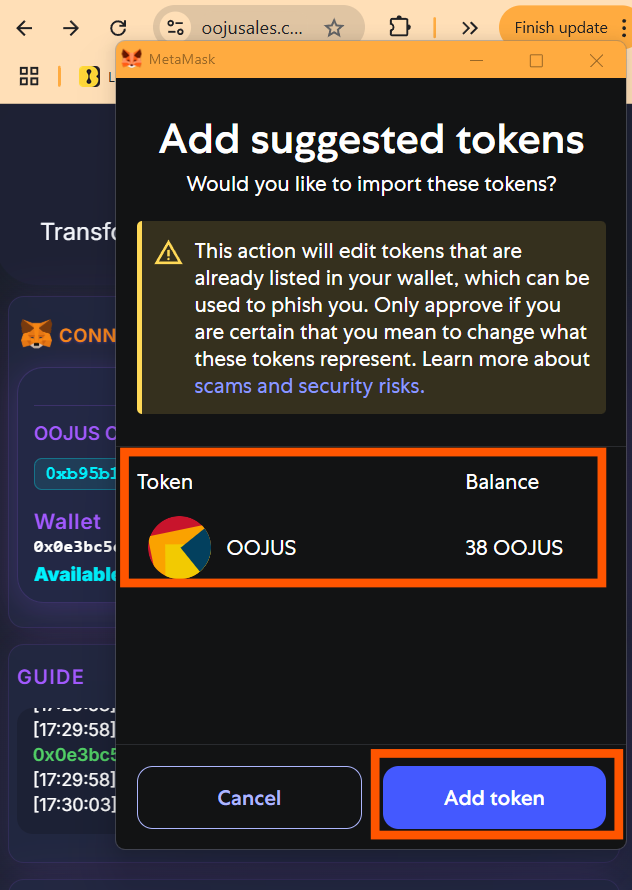
#### **Step 2: Confirm Token name is the same and click on "Add Token"**

<div align="left"><figure><img src="https://1601025725-files.gitbook.io/~/files/v0/b/gitbook-x-prod.appspot.com/o/spaces%2FpmTmyDG5fXgRWTNXspUU%2Fuploads%2FPorncAkNS0fqTISqKfAD%2Fimage.png?alt=media&amp;token=f7fef507-6499-47e5-a7b5-3547b5a0fb47" alt="" width="316"><figcaption></figcaption></figure></div>

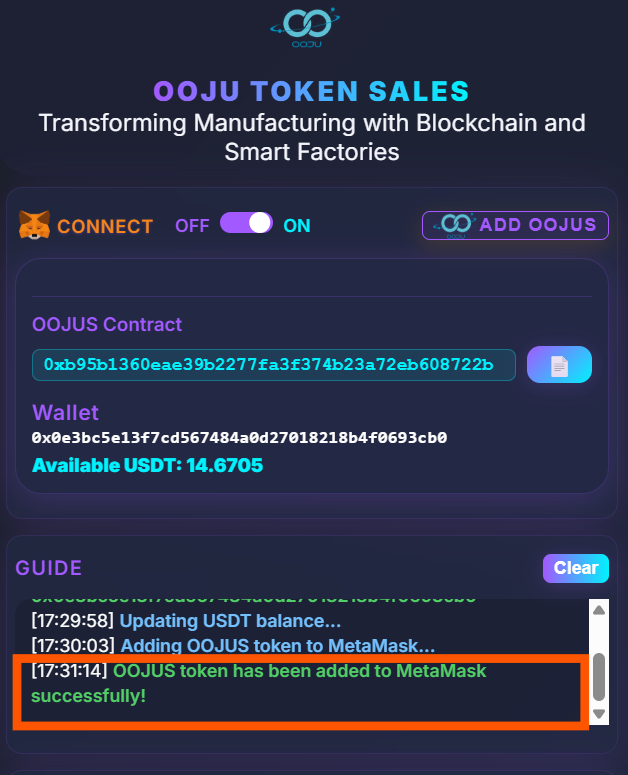
#### **Step 3: Check from Guide log to see that it says OOJU has been added, you may also manually check your MetaMask Wallet to confirm.**

<div align="left"><figure><img src="https://1601025725-files.gitbook.io/~/files/v0/b/gitbook-x-prod.appspot.com/o/spaces%2FpmTmyDG5fXgRWTNXspUU%2Fuploads%2FHDuXE50cJmfLDJN8gzgh%2Fimage.png?alt=media&amp;token=ac6044e8-d4e2-4894-97fc-fabaec8bcda7" alt="" width="314"><figcaption></figcaption></figure></div>
{% endtab %}

{% tab title="Manual Token Add (Method 2)" %}

#### **Step 1: Copy Address**

<div align="left"><figure><img src="https://1601025725-files.gitbook.io/~/files/v0/b/gitbook-x-prod.appspot.com/o/spaces%2FpmTmyDG5fXgRWTNXspUU%2Fuploads%2F3RoS1hoFMiR1NCYLqesV%2Fimage.png?alt=media&amp;token=bfdfdde7-3c35-483f-ba5d-ac7eb8e49c4d" alt="" width="318"><figcaption></figcaption></figure></div>

***

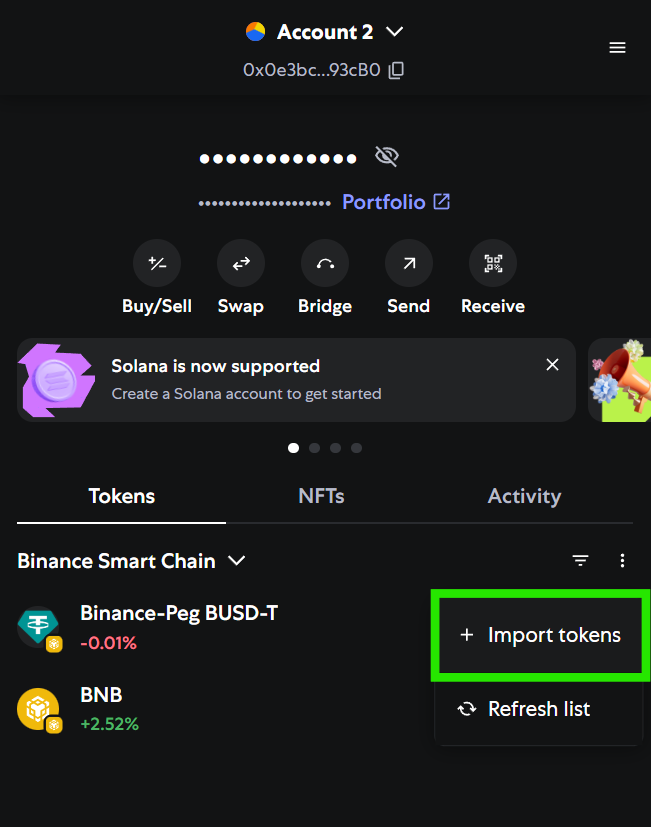
#### **Step 2: Click on Import Tokens**

Go to your MetaMask Wallet -> Dotted Icon -> Import Tokens

<div align="left"><figure><img src="https://1601025725-files.gitbook.io/~/files/v0/b/gitbook-x-prod.appspot.com/o/spaces%2FpmTmyDG5fXgRWTNXspUU%2Fuploads%2FMBR9q1xpRhUNPTKCStCQ%2Fimage.png?alt=media&amp;token=f42f6643-e3b8-49df-bd3e-0f11c200ffd0" alt="" width="326"><figcaption></figcaption></figure></div>

***

#### **Step 3: Confirm OOJU Contract**

After clicking on Import tokens, Click on **Custom Token**, then change the network to **Binance Smart Chain**. Paste the copied **contract address** into the box and the information should automatically appear (**Token Symbol and decimal**).

<div align="left"><figure><img src="https://1601025725-files.gitbook.io/~/files/v0/b/gitbook-x-prod.appspot.com/o/spaces%2FpmTmyDG5fXgRWTNXspUU%2Fuploads%2FF6fgZuuo6CnoAPmYUMoZ%2Fimage.png?alt=media&amp;token=882ac56b-7053-4e81-859e-421da0159972" alt="" width="321"><figcaption></figcaption></figure></div>

***

#### **Step 4: Click on Import**

<div align="left"><figure><img src="https://1601025725-files.gitbook.io/~/files/v0/b/gitbook-x-prod.appspot.com/o/spaces%2FpmTmyDG5fXgRWTNXspUU%2Fuploads%2FZ4pxFNObgM4WJai1Kkih%2Fimage.png?alt=media&amp;token=b06663c4-9c87-495a-a23f-4dc5c52a52e6" alt="" width="350"><figcaption></figcaption></figure></div>

***

**Step 5: Token Successfully Added**

Check your MetaMask Wallet to see if the OOJU Token was successfully added to your wallet.

<div align="left"><figure><img src="https://1601025725-files.gitbook.io/~/files/v0/b/gitbook-x-prod.appspot.com/o/spaces%2FpmTmyDG5fXgRWTNXspUU%2Fuploads%2FosulCpzqKetJv75fuDIz%2Fimage.png?alt=media&amp;token=208fc911-8198-4733-820f-924094712b43" alt="" width="388"><figcaption></figcaption></figure></div>
{% endtab %}
{% endtabs %}

***

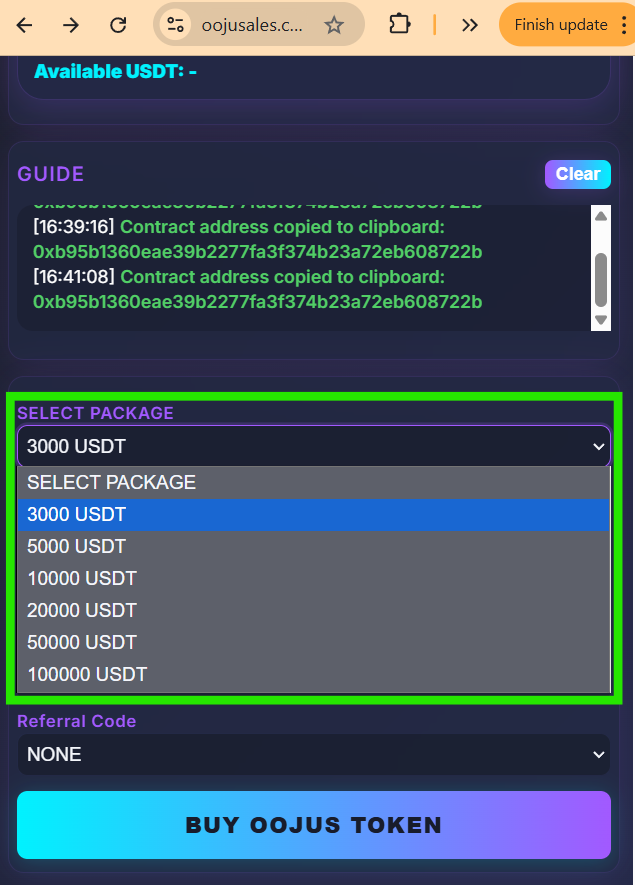
#### **Step 5: Select a Package**

Choose your desired investment package (e.g., 3,000 / 5,000 / 10,000 USDT).\
The expected OOJU token amount will be automatically calculated as shown below.

<div align="left"><figure><img src="https://1601025725-files.gitbook.io/~/files/v0/b/gitbook-x-prod.appspot.com/o/spaces%2FpmTmyDG5fXgRWTNXspUU%2Fuploads%2FSLLluQJwOxbFvjMxMGlo%2Fimage.png?alt=media&amp;token=4f18ffa5-4e84-4f6e-b061-2893bbfe1f2a" alt="" width="476"><figcaption></figcaption></figure></div>

***

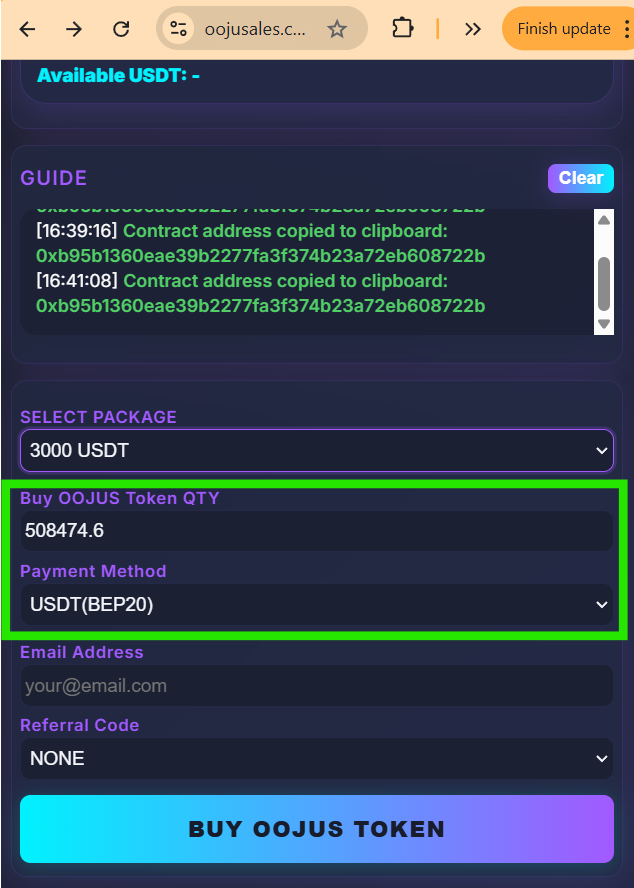
#### **Step 6: OOJU Token Amount and Payment**

1. Make sure the Payment Method is set to USDT, (Wallet network must be set to BSC).
2. Confirm OOJU Quantity&#x20;

<div align="left"><figure><img src="https://1601025725-files.gitbook.io/~/files/v0/b/gitbook-x-prod.appspot.com/o/spaces%2FpmTmyDG5fXgRWTNXspUU%2Fuploads%2FXkOSZub1sjQ2XVzfPmmU%2Fimage.png?alt=media&amp;token=453e6fb8-e119-492f-90a8-385e189b8e1c" alt="" width="476"><figcaption></figcaption></figure></div>

***

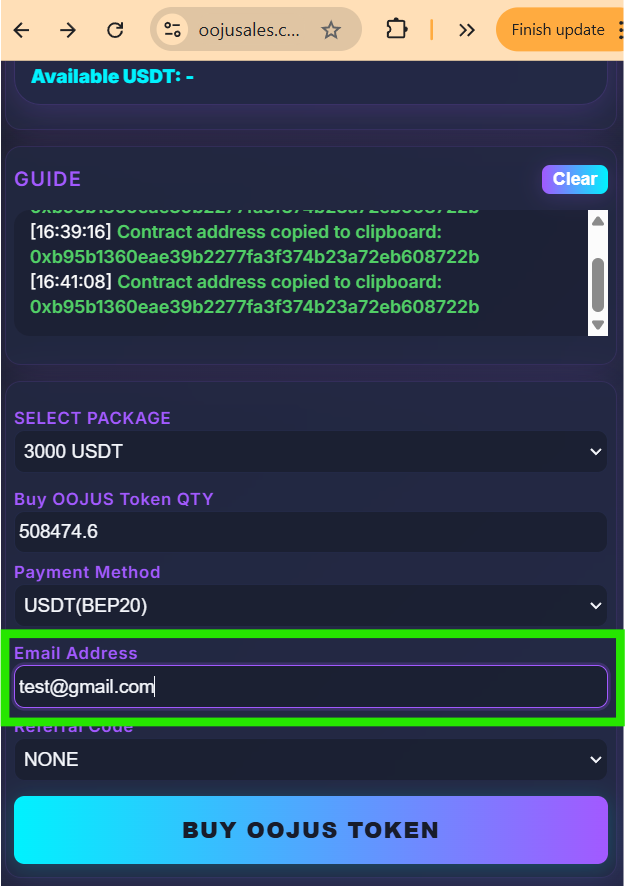
#### **Step 7: Enter Email Address**

Provide your email address, (This is important for any future notices, other circumstances)

<div align="left"><figure><img src="https://1601025725-files.gitbook.io/~/files/v0/b/gitbook-x-prod.appspot.com/o/spaces%2FpmTmyDG5fXgRWTNXspUU%2Fuploads%2FX2ZmjNFuSI6eEgTpAug4%2Fimage.png?alt=media&amp;token=4cd266db-df4f-4650-a4c7-f95898d5e690" alt="" width="470"><figcaption></figcaption></figure></div>

***

#### **Step 8: Choose Referral Code**

Pick your Code (e.g., A3F9ZB, MKT82Q or None…) from the dropdown menu.

<div align="left"><figure><img src="https://1601025725-files.gitbook.io/~/files/v0/b/gitbook-x-prod.appspot.com/o/spaces%2FpmTmyDG5fXgRWTNXspUU%2Fuploads%2FYWZlWEeYCNpi3W8C4TLI%2Fimage.png?alt=media&amp;token=8dc46964-fa66-4b29-8419-792e69080575" alt="" width="469"><figcaption></figcaption></figure></div>

***

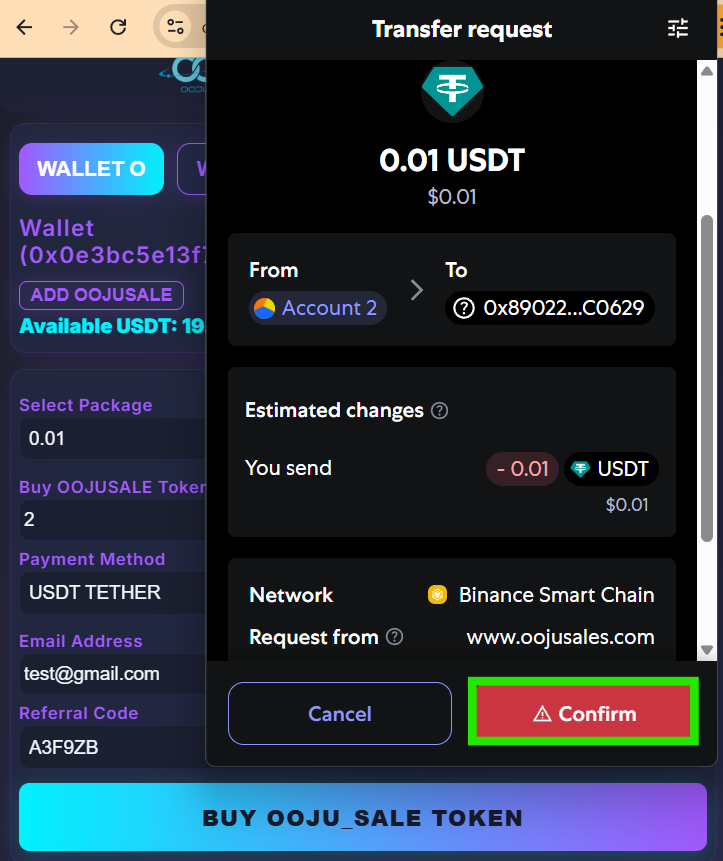
{% hint style="danger" %}

1. When making a transaction, if there is no recipient wallet address and the recipient is shown as "USDT" then please cancel the transaction, refresh and try again.
2. When making a transaction, if the recipient has a wallet address then please continue with the transaction
   {% endhint %}

***

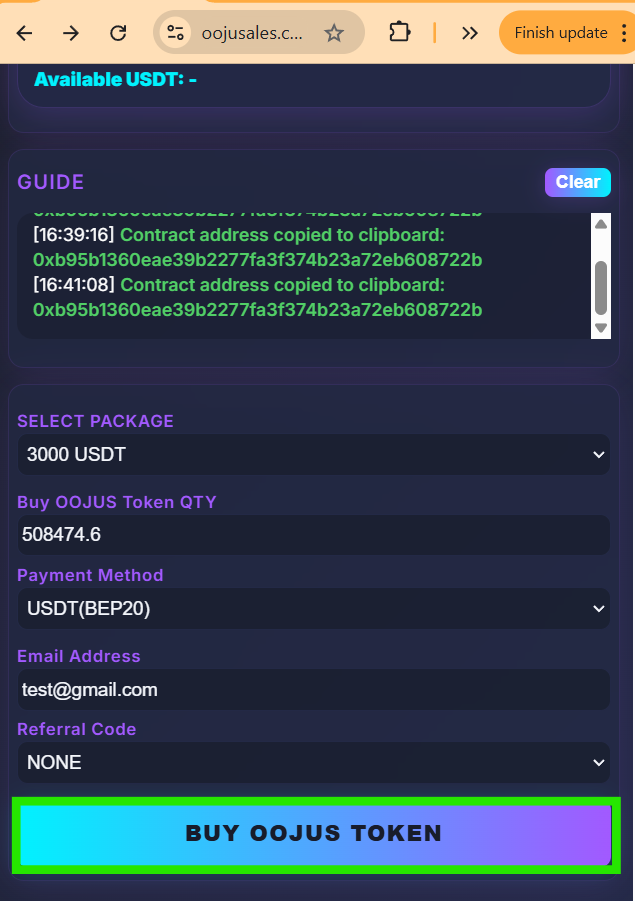
#### **Step 9: Click on" Buy OOJU Token" Button**

<div align="left"><figure><img src="https://1601025725-files.gitbook.io/~/files/v0/b/gitbook-x-prod.appspot.com/o/spaces%2FpmTmyDG5fXgRWTNXspUU%2Fuploads%2FiTwYx3KiPKsLj03v77KL%2Fimage.png?alt=media&amp;token=ef018a9a-c72e-40a9-b4ab-91ba2b3d1a7c" alt="" width="476"><figcaption></figcaption></figure></div>

***

#### **Step 10: Confirm OOJU Purchase Request on MetaMask**

After clicking **Buy OOJU Tokens**, MetaMask will ask you to confirm the purchase request. Click on Confirm and the selected package amount of USDT will be transferred out.&#x20;

<div align="left"><figure><img src="https://1601025725-files.gitbook.io/~/files/v0/b/gitbook-x-prod.appspot.com/o/spaces%2FpmTmyDG5fXgRWTNXspUU%2Fuploads%2F7RYAXnIekRoL6dPl60ch%2Fimage.png?alt=media&amp;token=acdc85eb-b9bd-4de3-af0f-137bb29ff2f2" alt="" width="362"><figcaption></figcaption></figure></div>

{% hint style="danger" %}
Even if it says that its a deceptive request, you may still continue with the purchase on [www.oojusales.com](http://www.oojusales.com). Its a standard message MetaMask shows due to its Wallet functionality.&#x20;
{% endhint %}

***

#### **Step 11: Click on Confirm**

Click on confirm, you will receive OOJU after clicking on this button

<div align="left"><figure><img src="https://1601025725-files.gitbook.io/~/files/v0/b/gitbook-x-prod.appspot.com/o/spaces%2FpmTmyDG5fXgRWTNXspUU%2Fuploads%2FJdO1z5lGGQoJN5ZbHnep%2Fimage.png?alt=media&amp;token=82e9c38e-fc45-416e-841b-29984b006c72" alt="" width="359"><figcaption></figcaption></figure></div>

{% hint style="danger" %}
Even if it says that its a deceptive request, you may still continue with the purchase on [www.oojusales.com](http://www.oojusales.com). Its a standard message MetaMask shows due to its Wallet functionality.&#x20;
{% endhint %}

***

#### **Step 12: Receive OOJU Tokens**

<div align="left"><figure><img src="https://1601025725-files.gitbook.io/~/files/v0/b/gitbook-x-prod.appspot.com/o/spaces%2FpmTmyDG5fXgRWTNXspUU%2Fuploads%2F3B2q0Q5l7Bm0uouxONYv%2Fimage.png?alt=media&amp;token=2357ef66-c849-4f99-9036-00b39e69c4f1" alt="" width="353"><figcaption></figcaption></figure></div>

It can take anywhere from 10 seconds to 5 minutes to display your purchased OOJU Token within your MetaMask Wallet. You can check through your connected wallet whether the transaction was successful. If it was Successful then rest assured and allow for a few minutes. Time is determined by factors such as network traffic and token amount.&#x20;